Tuesday, 18 August 2015

Giving Learners Options Through Navigation

During the “How to Design an e-Learning Program” course from the University of Toronto’s Continuing Education, I used an e-learning project that I’m presently creating at work to apply the various concepts I learned. The course I’m designing is for employees who need to learn to post information on our corporate intranet using Umbraco.

I was able to think through the e-learning course that I’m designing in order to teach to two very distinct types of learners. I call these the Tech-Savvy Learners, those who are comfortable learning new programs; and the Nervous Learners, those who are intimidated by technology and are sure that this will be difficult to learn.

I didn’t want to create two distinct courses and I was hoping that it wasn’t necessary. I learned that giving learners options for how they wish to go through the course is often a matter of navigation. I haven’t had the chance to test my navigation with learners yet, so I hope that it’ll work out.


Essentially the Tech-Savvy learners can read the introduction and instruction pages and then go directly to the intranet test site to practice what they’ve learned. Anyone who wants more information, or who is more visual, can choose to watch a demonstration. They can re-watch the demonstration or re-read the instructions. When they are ready, they can go practice what they learned.

The Tricks and Tips section is highly recommended but a learner can always use the Table of Contents to skip whatever they want.

Monday, 3 August 2015

Instructional Design Principles

It's done! Another course completed. This latest course was How to Design an e-Learning Program from the University of Toronto's Continuing Education. I have now completed 3 of the 5 courses for the E-learning Certificate. Yeah!

Even if I was familiar with most of the topics, it was great to learn about these in more detail. It turns out that following a few e-learning and design blogs has kept me up-to-date with what's happening. It was great to find other sources of information and inspiration through this course. I’ll be sharing some of these with you.

My intent was to write a post on what I learned in the course, but after reviewing my course notes and assignments, I have enough ideas for at least three posts. This is good news since this blog is neglected compared to my Quilting blog.

Here are some of the topics and ideas that stood out and how I’ve been able to apply some of these.

What I learned (Part 1):

Instructional Design Principles (or rules worth following when designing e-learning course)

My first assignment involved identifying instructional design principles to follow during the design of my project. Finding these on the internet wasn’t easy because they are rarely identified as principles. Here are some of my favourites, sorted by source. My observations are in the bullet
following the principle.
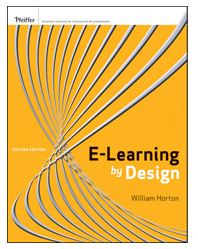
E-Learning by Design

E-Learning by Design by William Horton
  • Teach only what they “need to know”; what is essential; skills required in their jobs.
    • This can be difficult because we love learning and think everything is important. It’s not!
  • Ensure that they can skip what they already know and what they could learn on their own. 
    • The trick here is to make sure that they already know it or that they can come back if they find out they didn’t know it all.
  • Base the design on clear goals that are important to the organisation.
    • It was an interesting and worthwhile exercise to link the course goals to my organisation’s goals. 
Quick Survival Guide for Modern eLearning Designers
Quick Survival Guide 
A Quick Survival Guide for Modern eLearning Designers  (it’s a free download worth getting)
  • Use visuals to explain the content normally write out as a screen filled with bullet points.
    • An image can sometimes put the information in context. I really try to avoid the wall of words, whether it’s in e-learning or on the internet.
  • Every element of the design needs to have a purpose.
    • Excellent idea that applies to content as well as graphics etc.
  • If someone can say it better than you, then let them (link up to their blog, article or video).
    • Faculty Focus Blog
      Faculty Focus Blog
    • Not easy to do when things need to be bilingual but wise none-the-less.
  • Use a consistant format.
    • This is key for a professional looking product. Attention to detail is important here.
  • It takes longer than you think to create online content! 
    • Doesn't that apply to all project?
I’m not sure that I consciously kept these principles in mind, but I did use them. Not only are the principles relevant, but all three sources are excellent.

I hope that you have time to check these out!


Wednesday, 27 May 2015

Graphics in Elearning

I know that the numerous authors are correct about the importance of appropriate graphics in an elearning program. The key word is “appropriate”. Just as in web design, using an image that is not relevant is worse than not having any.

Graphics or images need to be:

  • Relevant or appropriate;
  • Understandable; and 
  • Useful in the communication of the ideas presented.

An example of a clean layout with consistent font, colour and shapes
A clean layout with consistent font, colour and shapes
As much as images are required, I believe that it’s just as important to use consistent font, colours and shapes (such as buttons). This makes the elearning look professional and helps users know what to expect. 

The other point is to avoid at all cost the “wall of words”. Using images is one way of breaking things up. In my opinion the best way to avoid the wall of words is to keep the words to an absolute minimum. This is done by conveying what is necessary and leaving out the “nice to know”. I have found a great resource in Lisa M. Russell’s documents, including Clean the Clutter of your Words. 

I have been reading and using the book, White Space is Not Your Enemy (WSINYE) by Rebecca Hagen & Kim Golombisky. It’s informative with lots of examples, both good and bad. I highly recommend it.
White Space is Not Your Enemy book cover
White Space is Not Your Enemy

As for designing graphics, I seriously looked into learning software more technical than PowerPoint, the Snipping Tool and Paint. I use Photoshop minimally but I decided to spend my energy deepening my knowledge of design and development of elearning rather than graphics. At this time in my career, having some knowledge of web design is more important than becoming a graphic artist. If I need to, I can always hire a graphic designer.

What I've learned:
  • I can't learn it all, especially if there is a steep learning curve! Graphic design will have to wait for a next life.
  • I have a much better chance at becoming good at elearning and web design than graphic design.
  • It's still pretty amazing what I can do with PowerPoint, the Snipping Tool and Paint!

Friday, 15 May 2015

Using Storyboards in E-learning Design

Storyboards were first used to design animation movies. They can also be useful in the design of e-learning. Storyboards come in all types of format - from paper, to Word or PowerPoint documents, to specialized storyboard tools such as Storyboard That. 
The Purpose of Storyboarding
For some interesting background, here is a great YouTube video, The Purpose of Storyboarding. 
I first started using storyboards about 5 years ago, after beginning to design my first e-learning course in PowerPoint (based on Jane Bozarth’s first edition of Better Than Bullet Points: Creating Engaging e-Learning with PowerPoint). I was having a great time creating an e-learning version of an in-class course I had created and taught but it wasn't clear where I was going with the course. After reading Connie Malamed's blog about storyboards, I downloaded the examples of storyboards found in her Storyboard Depot, adapted one and started using it.
I realise that I use a combination of storyboarding and designing directly in Adobe Captivate. After reading the articles on storyboards and wireframes (they are mostly used to design websites), in my How to Design an E-learning Program course, and watching the above video, I realise that I don’t use storyboards in a visual context. For me, it’s all about the content (text) and the flow. The visuals come later.
Storyboarding the Menu
After doing my initial research into my learners and what they need to know, I write a first draft of my learning objectives. This is where I also figure out if I can do the work in one module or if I should have a series of modules. I use good old fashion paper to get this done.
The Menu in Adobe Captivate
The Menu in Captivate
From my potential objectives, I prepare my introduction as well as plan out how to develop the module using the storyboard. I use the storyboard until I'm comfortable with my outline and where the module is heading. Once I have a path for my module, I usually start working in Captivate. My transfer from storyboard to Captivate is pretty intuitive. When I am doing more word smithing than planning, that’s usually where I go to Captivate.
I may end up doing the rest of the course directly in Captivate, but at one point I go back to the storyboard and copy the text, instructions, etc. from Captivate into it. I do this for a few reasons:
  • It's easier for the editor to review the course in the storyboard format;
  • I indicate the types and colour of the text boxes, info on the visuals and buttons I used as well as other techniques such as roll-over captions within the storyboard;
  • After potential students and my colleagues review the first published version of the course, I make the suggested changes in the storyboard. I use this version to make sure that everything is consistent. Then I make the changes in Captivate.
  • Once completed, I forward the storyboard to the translators. I put everything that needs to be translated in French in red within the storyboard;
  • Once it's translated, I copy the French text in a copy of the original version of the module in Captivate;
  • The French storyboard gets revised by the editor and I make the final minor changes to the French Captivate version.
I like using both the storyboard and Captivate to design my e-learning courses. 
Storyboarding the Main Panel Page

The Main Panel page in Adobe Captivate
The Main Panel Page in Adobe Captivate
 What I've learned:  

  • It's important that I not get bogged down with using a specific tool because I "should" rather than what works best for me.
  • I don't spend time with the visuals in my storyboard because honestly I can't draw (free motion quilting doesn't count) and I know that I would spend all of my time on the visuals. Visuals are important, but they have to support the ideas. It's best if I do these after I know where I'm going.

Friday, 8 May 2015

Why E-Learning? Why Not?

I have just started another e-learning course through the University of Toronto's Continuing Education. This one is How to Design an E-Learning Program. The first week is essentially an overview of the other two courses I've taken - Visual Design and Display of Information, and Writing for the Web.

My first discussion topic is:
Comment on a few of the advantages and benefits of e-learning in terms of why you might choose e-learning as your educational medium, and list specific advantages and benefits that impact the program you will be developing as part of this course.
Here's a quick summary of the program I'll be developing in this course:
  • Posting on the Intranet Using Umbraco is intended for employees who are tasked with posting content on the intranet. The intranet platform, Umbraco, is relatively easy to use for most simple posting tasks.
  • Employees are located across the country and presently get personal face-to-face training / coaching when possible. Otherwise, I use a combination of web-ex and conference calls.
  • Front page of the Posting on the Intranet Using Umbraco Program
    Front page of the Posting on the Intranet Using Umbraco Program
  • There are only a few employees in each business unit who post on the intranet, however there is often a very high turn-over for performing these tasks since it is often in addition to the rest of their regular jobs.
Advantages and benefits to having this program be delivered through e-learning:
  • Convenience: employees will be able to follow the course at their desk, where ever they are. No more scheduling of boardrooms, web-ex and conference calls.
  • Flexible: they will be able to access the parts of the course that they are interested in or are having difficulty with. 
  • Self-paced: Instead of learning the basics within a two-hour time frame, employees will be able to stop the training when they feel they have had enough at the time.
  • Economic option: it is not feasible to keep teaching/ coaching employees one at a time, or in small groups. Eventually another method of delivery will be required.
  • Consistent with the skill sets of the employees: employees who will post on the intranet are usually quite comfortable with technology. An e-learning program will not be outside of their comfort zone.
What I learned in this first week:

  • It's going to take me more than one day a week working from home to complete all the readings and assignments for this course!
  • I read a few articles on the difference and effectiveness between e-learning and face-to-face training. The bottom line is that e-learning can be as effective or as bad, as face-to-face training. The quality of the training is generally based on its design and how it addresses the learning needs of students. 
  • I discovered a couple of MOOC (Massive Open Online Course) websites. I had found one website but the course I wanted was neither free or nor available in Canada. I've now registered for the course, Leaders of Learning with edX. It's a course in their archive which suites me better since I can do it at my own pace.  I suspect I may have my hands full with my Design course. I was also intrigued with Coursera. There have less archived courses and more actual asynchronous online courses. 
Wish me luck!

Monday, 26 January 2015

Creating Navigation Tabs

Beautify Your Blog button and table of content
Beautify your Blog
The next lesson on Erin's Beautify your Blog series is 5. Navigation Tabs. I've been thinking for a while about adding more pages to my blogs. Of course, it's important that the tabs link to related and interesting pages. To that end, I've been noticing what types of additional pages bloggers have on their sites. Here are some of the additional pages that are often found on quilting blogs:
  • Quilting Tips or Tutorials;
  • Link to their e-Shop, patterns for sale, etc.;
  • Linking Parties (that they created or participated in); 
  • Quilts and Projects (either in-process or finished);
  • Quilt-Alongs (that they created or participated in);
  • Speaking,Teaching and Events (especially if they are professionals);
  • About Me;
  • Quilt Gallery or Finished Projects (photos of finished quilts) (some divided by year); and
  • Helpful Hints (theirs or links to other resources).
Here are some neat ideas about other possible pages:
  • UFO Management; 
  • Events that they are attending;
  • Annual Plans (usually UFOs and UFO Challenges);
  • Quilt Journal (links to all of the blogs related to a finished quilt);
  • Ideas for future quilts (lists, links, pictures, sketches, etc.);
  • Interesting Resources (on the internet, books, etc.) about design, FMQ; 
  • Quilting Bloggers around the world;
  • Specific interest pages such as techniques, products like journal covers or purses, original designs, etc.; and
  • Specific Projects or a series, etc. (that they created or participated in).
I've been doing some research on the design blogs out there. Many are created by professional designers who have companies, so it's difficult to use them as examples of the types of pages I might want to add to my design blog. I guess the real issue is what is the purpose of the blog. For me, it's about recording my learning journey in design, be it for web, blog, e-learning or anything else. As I keep looking at design blogs, I'll be able to get a better sense of what I will want for the Design blog. I'm slowly making my way though the Top 100 Design Blogs To Follow by Ciera Design.

Technically you don't want to create and publish navigation tabs if they don't link to anything....that's why I started this process in the test site. I'll be creating potential navigation tabs and showing them off in this post, but will only upload them on my "real" site as I create actual pages to link to.

Erin suggested that when creating navigation tabs, that the image for the navigation tab should be about 50px high or less.  I did create a button using the image above but when I went to post it on Photobucket, it didn't let me download just one photo, but rather, it downloaded my entire folder. I was not impressed. It may have been my fault, but after that, I wasn't in the mood to keep at it. Maybe one day when I have more patience, I'll try again.

So, I did what everyone does....I Googled it! I found a web site that said that I can use a gadget for my navigation bar. That sounded good to me. When I searched the gadgets, it wasn't really obvious, but here it is. It worked really well and was fairly easy to install. Now, I just have to figure out what I want to place in my navigation bar.

What I learned:
  • It's not a good idea to play with new apps when I'm impatient! On the other hand, it did lead me to find an alternative to creating my own navigation tab. 
  • I know that I at least want to link my two blogs together. I'll be able to do this and still keep their design distinct.
  • I don't really need an "about me" section, but like Erin said, it is easy to create.

Wednesday, 7 January 2015

Working on a Header

Weeks 3 and 4 of Beautify your Blog is about the header. I'm looking forward to these because so far I'm not really impressed with the backgrounds that I've chosen. I know that once I create a header that I like, that I will probably have to use a more neutral background.

Here are a few things that Erin suggests:
  • If you've adjusted the width of your blog, then you'll want a header that is roughly 1000px wide. The height of the header should be about a third of the width, so in this case, 300px or so.
  • Use only a couple of fonts and match your background colours.
I ended up making a large number of headers. I love making these. I've been using PowerPoint to make my own images for years. It's simple to put images together and then add text. One thing that I've learned is that it's best to do this within a coloured box, even if that colour is white. Unless I'm going to use just one background image, the first thing I do is create a white rectangle with a thin border. I then add my images and text boxes. Once I'm done, I save the entire group as a JPEG image. After the image is saved, it's easy to place it where you need it, and then, if you don't like something, to go back into PowerPoint to make changes. That's why I always save my PowerPoint file - you never know when you'll have to go back and make changes.

Here are some of the headers I've tried out on the Test site.
Header with two large images and centered name

In my header I've used a number of images. This example contains two larger images, one of them within a round frame. The blog name is large and in the middle, and as Erin suggested, it contains two fonts and two colours that fit with the background.

Header with round images and smaller name


In this example, I used a number of images within round frames. The blog name is smaller and located under the smaller images.


Header with images in square frames

This header is similar to the above example but the images are within a square frame with rounded borders. There are less of them and they are slightly larger.

You will notice that the background is different. I tried taking a picture of fabric and using these as background. This was my favourite one, but I'm not sure that it's required if I have an interesting header.

Header for Learning & Design Blog

I wanted to try something totally different for my Learning & Design blog. (You may have noticed that the other images are for the Quilting & Learning blog.)


Header with different fonts


This is a similar header with  different fonts and a different background colour. I found the design, Stitches, on the Starsunflower Studio site that Erin suggested. The design is by Jan Kopriva.


Header with an overall image
I've just added a different header for the Learning & Design blog. It took a while to get it right because it turns out that even if you make the background the correct size (970px), when you open it up in PowerPoint, the size will change.

The image is Winter Leaves, designed by Nathalie Ouederni from France. I found the image on the Smashing Magazine website, as part of their Desktop Wallpaper Calenders: January 2015 series. Isn't it great? If you go to Nathalie's site, you can download wallpaper from this image.

What I learned:
  • If you want to put writing within your image, you have to have a uniform section to write in, otherwise you'll only see the writing in some sections and not others.
  • Details such as font, font size and the frames around images can make a lot of difference.
  • Bringing an image into PowerPoint changes its size!
  • Working with a width of over 1000px makes aligning images much more difficult within a post. I ended up going back to 970px.
  • Getting the same colour background for my test site and this site was very difficult. It turns out that if you want to change the background colour to something specific, you should go to the "Advanced" setting/ "Backgrounds" and then change the "Outer Background".
  • The hard part is choosing! Should I keep making new headings or just choose one?  
If you have any preferences, please let me know!

Sunday, 3 August 2014

New Look is Coming Along

It's week 2 of Beautify your Blog. Erin's examples and instructions are really well done. The lesson was on Blog Layouts and Backgrounds.
New background

Erin gave us suggestions for finding wallpaper through Google. It turns out that getting the right wallpaper is tricky. They suggest that if you want to image to cover the full background of the blog, then the image should be 1800 x 1600 or greater. However, the image needs to be under 300k - that's quite small. So if you want a large image, the resolution has to be pretty low; and then you would only see the sides of the wallpaper behind your blog.

Another option is to find a smaller image and tile it. This can work very well, but it really depends on the image. I found a funky but not too strong image at Wallpaper Panda.com It's relatively small; tiles well; has colour and interest without over-powering the page.

Following Erin's instructions, I also made the test blog wider. I think it's important to show more of the blog and less of the background!

First version of the new look
Although Erin suggests keeping the blog's background (where the writing is located) white, I just found the contrast to be too much. I played with many colours and the one I liked best was the cream. I actually loved the pale pink, but that didn't give the page enough contrast.

I'm not sure is this is my final background design but I'm going with this choice at this time. The great thing about the design is that it can be changed, and it's even easier than painting a room!

Second background choice
I guess I must of had reservations about my choice because after publishing this blog post and making the changes in the Learning & Design blog, I got an idea (oh oh!) When I took the picture of the blog above, it was with the Snipping Tool and I notices when I posted it that it was quite small in size.....so, why not take a snippet of one of the backgrounds that I liked but was too large, and see if this would work. Well, it did!
Second option for the new look


Now I have a dilemma - which image should I use? I'm going to post images of both images and blogs. I don't have to decide right away - and if you want to tell me which one you like best, that would be appreciated!

The next two lessons are about creating a header - I can't wait. It would be nice to create something that pops!


What I learned:

  • I loved playing with the background! I seem to be unable to choose anything that is really sedate.
  • Sometimes it's good to consider other tools such as the Snipping Tool to play with your images.
  • I also learned how to add a text gadget at the bottom of the blog to give credit for the image.

Monday, 28 July 2014

Beautifying My Blog Project

Welcome back!

I've been reading many blogs lately (usually of a quilty nature of course!) and came upon Sew at Home Mummy's Beautify your Blog series. There are twelve posts in the series which started a while ago so that her series is now finished. That's how I love series...finished! Now I won't have to wait to go from one post to the next.

The series was created by Erin Davis, an incredibly busy Sew at home mummy who tries to blog at least 3 times a week (that's my objective for the month!!) The series was created specifically for those using blogger.com. I'm going to follow the series and post my results in this blog as I go along.

Are you ready for a design adventure? I'll take that as a yes if you're still reading :-)

Week one Start Here:
There are a series of videos on how to get ready for this Adventure.

Video 1 is "How to back up your blog".  Well, since I really don't like my blog's template, I'm going to take a chance and not back it up. I'm sure that all will go well. Once I've changed my blog to something I love, I'll back it up!

Video 2 is "How to make a test blog". That's probably a good idea. I have created the test blog and will copy the positive results on this blog. I can also use my favourite Snipping Tool to take pictures of the not so positive results or anything else that will help you and I learn to beautify our blog.
Learning & Design Blog - Before Picture
Learning & Design Blog - Before

I've taken a shot of my Learning & Design: What a Combo! blog as it looks before taking this course. My objective is to beautify it!

Video 3 is about inserting a button within the post and on the side of the blog. Although I had figured out a while ago how to insert a button, I did learn something I had been wondering about.... and it's so simple!

I'm not sure if you can see it in the "before" photo, but the title over the button on the right is "Beautify Your Blog Series", which is redundant since that's what the button says! I was wondering how bloggers got comments like "Participating in..." within their side bar. It turns out that they write that comment as the title! You can also include more than one button in the same gadget. 


As for inserting a button in the post, if you don't want to work in html, you can click the button in the options section to "Interpret typed HTML". This means that you can paste the button information directly on your post page and it will interpret the html code for you. This is how I posted this button. I also followed her instructions for changing the alignment of the button from center to left of the page.
Sew at Home Mummy

I can't wait to play with my template. So far I've only changed it to Simple. Stay tuned for more changes.


What I learned:
  • Although I often work with html coding at work, I didn't really make the link to using it for things like the gadgets that are inserted on the blog page. It turns out that they follow the same principle as web pages. I didn't have the code to insert the Grandmother's Choice button but I followed the code pattern of the Beautify Your Blog button and Voila! Isn't it amazing when you can apply things that you know from one domain to another? Now that's real learning.

Thursday, 12 June 2014

Ever After?

It's been almost a year... and I was stumped.

I thought that I would keep being inspired to keep up this blog through the fascinating world of course design. Wouldn't you know it, now that I have my certificate in Adult Ed., I'm really having a hard time finding it fascinating! Hopefully this is just temporary.

In my last post, I applied another template to my blog since I wanted to be more "serious". Well, it's just not ME! For something different, I've switched to a different template. This one looks like some wonderful batik fabric. As Oscar Wilde wrote: "Life is too important to be taken seriously"....life, blogging, design, templates, etc.!

Since last August, I've taken another course through Continuing Education at the University of Toronto. This was Writing for the Web. Although I didn't blog throughout the course, I used it extensively to help me with my Quilting and Learning Blog. As I look back at my earlier blogs, I see the difference. It's mostly the details like:

  • creating appropriate links; 
  • knowing how to add Gadgets properly (those buttons on the left); 
  • using bullets and avoiding the "wall of words";
  • keeping a consistent style like my "What I learned" section at the end; as well as 
  • just knowing what to write about!

A recent post
One of my first posts


To continue on my learning journey, I've recently been participating in events offered by the quilting blogging community. Seeing and reading other bloggers' sites is a great way to appreciate what works from the reader's point of view. There's even a Blog Hop for new quilters hosted by Plum and June which includes advice from advanced bloggers to new bloggers. It's really great to read blogger's advice and to see these new bloggers. Getting involved is, however, a lot of work. The trick is to balance the time spent on the computer with actual quilting time.

What I learned:
  • Blogging is wonderful fun. I don't ever want to take it too seriously that I don't do it!
  • Learning can be done in so many ways, from taking a course; putting things into practice; to reading other people's blogs. 
  • Everything is so interconnected! I can use my design knowledge to create web pages and beautiful quilts as well as enjoy art more fully.

Friday, 2 August 2013

New Look

I'm really going to miss the 60's look of my blog.

I loved the look for my Visual Design and Display of Information course blog, but I really think that it's a little much for a course design blog (which is a tad less artsy).

Since changing the blog template affects the whole blog, not just my new blogs, I though I would post a picture to remind me of my wild summer in visual design!

It almost feels like my summer is over, and now I'm being more adult and responsible. I guess I'll have to use my love of crazy colours on my quilting blog!

Breaking Down Assumptions

I wanted to keep up this blog but I wanted it to be larger than web design. It took me a while to break through the assumption that this blog doesn't have to be only about web design. With a name like Learning & Design, why not talk about creating learning design, course design, learning about course design, learning from course design, etc.? That sounds like a plan.

I've been receiving Faculty Focus – an e-magazine of sorts about “higher ed teaching strategies from Magna Publications”. Although written for college and university teachers, many of the issues and topics relate to the larger world of adult education outside of these specific institutions. What I love about the publication is that the articles may reference scholarly publications, but the topics and the writing is very practical.

Here is a great technique for engaging students and encouraging them to participate.

Today’s article is Using a Blog to Enhance Student Participation by Maryellen Weimer, PhD. The article, about using a blog assignment to enhance student participation within an in-class course, appealed to me because this is similar to what I just experienced in my Visual Design and Display of Information course. I agree that a blog is a great forum to reflect on the course’s ideas.

Dr. Weimer has some great ideas about how to use the blog. Here are the highlights:

  • The blog assignment was used throughout the course to respond to that week’s readings and to connect it to current events. They had to write a minimum of 300 words to address that week’s topic and also reflect on the ideas of at least one other blogger from their class.
  • The student bloggers remained anonymous by using user-names that were only known by the teacher.
  • The teacher reviewed the blogs the evening before the class to help her gauge the students’ understanding of the subject.
  • In class, she uses the printed blog posts to highlight insightful responses, good questions and exchanges, and correct inaccuracies.
It turns out that several of the students who did not participate in class did participate well in the blog discussions. This isn't surprising since many introverts need to think things through before talking (and of course, some of them are shy). This assignment would give them time to think of their responses without standing out in the class. A great combination for many introverts!

Although I enjoyed creating the blog for my course, I think that having an anonymous component as well as at least a little bit of a requirement to respond to another student’s blog could have added to the course. We were encouraged to share our blog addresses with our fellow students, but most did not. This might have helped students feel safer about sharing.

Thursday, 18 July 2013

Learning About Design Continues


The course is over! Done! but the learning never is....

I've found some great stuff about design, and as usual, on the internet, it was a very round-about trip.
It all started with 


I hadn't been in months - too busy learning about design! Ironic because it turns out that there are amazing pins about design there. On Pinterest, I saw the coolest poster about colour and design.


That brought me to the British Design Experts. They have some very interesting links, articles and other stuff on their website. Check them out!

That's where I found this video. It's about the history and art of logo design. Enjoy!


Monday, 8 July 2013

Learning to Date

I can’t believe that my design course is almost over. It’s been a really busy month trying to get my “real” work done at work and doing my homework. I am usually an excellent self-learner and will often pick up a couple of books and learn on my own. Before taking this course, I had read a couple of design books but somehow things weren't sinking in. I REALLY hate to admit it, but upon reflection, I think it’s the doing (aka assignments) that made the subject real to me. Looking at websites, thinking about them and then creating them has been a real learning experience.

Here is a list of things I've learned during this course.

  1. Applying knowledge really does help you learn! To keep learning web and elearning design on my own, I’m going to have to do more “assignment”-type work to ensure that I practice and ground my learning.
  2. I knew a lot of odds and ends about web design. Now it’s more holistic and I can relate parts to each other.
  3. Designing a website and designing learning is very similar. They both:
  • Need to be audience focused;
  • Need to take into account your audience’s experience and learning style;
  • Need to have precise objectives – otherwise it’s easy to lose your way;
  • Require creativity and practice;
  • Require knowledge of basic principles;
  • Should be tested out before an official launch;
  • Should be well organised;
  • Can be approached from many directions;
  • Require review, rewrites and tweaking!
  • Can’t please everyone – so knowing your primary audience and developing the content based on your objectives is key.

  • 4. A website layout is about ease of use and visual attraction. Simple is often best.

    5. There are a few main layout designs. Almost everything else is a combination of these. I suspect that most layout designs would do the job; it’s how we adapt them based on our audience and need that makes the difference.

    6. This was the first time that I bought the electronic version of a textbook. Not sure I’ll do it again, especially if the textbook isn't big and heavy! Paper has its advantages.

    7. Learning and mastering web design and all of the tools and technology that go with it is huge – and it’s bound to change tomorrow. I guess that’s perfect for someone who needs to keep learning.

    8. It’s amazing how generous people are with their learning on the Intranet. So much great stuff is available free of charge. It’s fantastic!

    9. I read some good tips on testing your site before you launch it in Steve Krug’s book, Don’t Make me Think, 2nd Edition, 2006. Here are a few tips:

  • Testing one user is better than testing no user; 
  • Testing one user at the beginning of a project is better than testing 50 users later!
  • Test early and often because testing will inform your design judgement. 
  • One test is the “Get it” testing: show someone the site; see if they understand its purpose; how it’s organised; how it works; etc. 
  • Another is the “Key task” test: ask a user to do something and watch to see he/she can. You’ll get better results if you let the user decide on parts of the task (i.e. find a book and buy it – and let them choose and find the book they want); 
  • Another test is the “cubicle” test: Print out a copy of a new page and have someone in the next cubicle see if they can make sense of it. 
  • Typical usability problems are: 

  • i. Purpose of the site is unclear;
    ii. Words that they are looking for aren't there;
    iii. There is too much going on.

    10. Once created, a website needs to be “weeded” like a garden. That’s too bad because if my garden is any indication....I’m in serious trouble!

Wednesday, 3 July 2013

Logos

Our week 6 assignment included identifying 5 top logo designs and why they are effective.

I haven’t thought about logos for over 20 years, so I thought I’d do a refresher. According to Jacob Cass of Just Creative, a good logo has five components.

Simple: Follow the KISS principle – Keep it simple, stupid. (That’s also how we were taught to write in business school!)

Memorable: It turns out that distinctive, memorable and clear (or simple) is probably more important than its subject matter or even its appropriateness.

Timeless: The example used here is Coca-Cola. Its logo has not changed since 1885. It’s too bad they didn’t remember this when they played with their recipe! On the other hand, the Pepsi logo has evolved, but is still very recognizable. This characteristic might be difficult to judge until years have passed.

Versatile: It’s very useful if the logo can be printed in colour or black and white and can easily change size.

Appropriate: somehow related to the product or service, its image or customers. The obvious example is the logo of Toys R Us – it’s colourful and fun which is appropriate for a toy store.

One way of appreciating a great logo is to look at really bad ones. On the worst logo designs, the logos look like something I might create using clip art in Word or PowerPoint. Many of the logos are probably from very small companies, such as the local hairdresser. I guess the question then becomes – is it better to not have a logo than to have a bad one? And also, do they really need a logo? For a small business with little to spend on marketing, that is a very valid question.

I checked out the Logo of the Day website. They feature many logos that people can vote on. Some are very good, even out of context. If a logo is not appropriate (i.e. it doesn’t obviously show what the company is about) it doesn’t mean that it’s not good, but it is hard to judge how good it is when there’s no context.

Here are my examples of effective logos that I’m familiar with (sorry, more quilting examples to come).

I like the Kobo logo. It’s simple, memorable, appropriate (includes a book) and probably versatile. What appeals to me are its simplicity and the inclusion of a book.


I like the fact that the Mad about Patchwork logo is colourful, fun and includes patchwork in the heart. I like the font. I think that it’s relatively simple, memorable and appropriate.

I like the use of colours in Flare Fabrics’ logo. The colours and the circles show movement and fun. I believe that it’s simple, memorable and appropriate.
The All People Quilt website's logo is just their name. I love their use of colour since that’s what quilting is all about. It also makes me think of quirky and fun. This is a simple, memorable and appropriate logo.

 The Craftsy logo is simple. The font, colour and shape make it memorable. It doesn't hurt that I see it in almost every web site that has advertising. Those darn cookies!

Words of Wisdom

As I was checking out the internet for something (I have no idea how I came upon this website!), I found “how i make a website”. Not only do I like the very simple design, but I also appreciate the words of wisdom that he offers. The site looks effortless – but I now know better! What I appreciate the most about this website is that the designer actually does what he preaches! Let’s have a look.

Lesson 1: ask four questions

1. What do I want to say?
2. Who do I want to say it to?
3. How do I get them to listen?
4. What do I want them to do?

Wisdom: “If the answer to any of these questions is not clear before I start work, I have learned the hard way to put the effort into making them clear – to myself, to anyone I'll be working with and, if I have one, to my client.”

The 4 questions correspond to some of our creative brief questions. I’ve also learned the hard way to take the time to define my audience and what they need to get from a training. If you’re not getting an answer from your boss or client, come up with something and have it reviewed. The training won’t be worth much if you don’t get the audience and objectives right.

Lesson 2: write a tagline

Wisdom: “A good tagline gives you and everyone involved a well defined and focused idea of what the site is about.”

I think that getting the message right in a tagline will help throughout the design process. When in doubt about the design, go back to your tagline (or objectives).

Lesson 3: think about navigation

Wisdom: “Once a site has piqued someone's interest, without thinking about it, they are looking for where to go from there. Make their choices obvious and intuitive.”

More Wisdom: “Whatever that structure might be, all sites have one thing in common: at this point a visitor is theirs to lose.”

In his website, the navigation is clear. There’s a big yellow button for the next lesson; the navigation bar includes “previous” and “next”; the lesson you are in is clearly marked in the heading; and if you want, you can just jump to one of the lessons from the list at the bottom.

Lesson 4: what’s the end game

Here he talks about marketing and the fact that most websites are there to make money. What I like is that he advocated honesty: “Be upfront and plainspoken.”

Wisdom: “Trust is hard to come by on the net. Don’t squander it.”

Lesson 5: site layout and design

1. Know your audience
2. Keep it simple

The designer uses the example of an Italian restaurant throughout his lessons.

Wisdom: “...keep is simple. A little zing can make a site really shine. A lot of zing is at best dead weight.”

Lesson 6: create the home page

All of the design elements should match the home page (i.e. navigation, header, foot, etc.)

Wisdom: He talks about being creative, but cautions: “Cool as something may be, if it's just window dressing, it shouldn't be there.”

Lesson 7: review and edit

The author suggests that once the home page is “done”, to go back to it in a few days with fresh eyes. Get the home page done well before going on with the rest of the site. This is the time to get the home page approved; and to make major changes if that’s what’s required.

Wisdom: “Reconsider everything.”

More wisdom: “Most of the time and effort that goes into creating a website is not in the writing – it's in the rewriting.”

I particularly like this lesson. Even when I think I’m done, a few days away from the project will help me see it clearly again. It’s easy to fall in love with a design (web or learning) but it’s not about love, it’s about getting it right for your audience. A few times I’ve come up with something I really liked and after re-working it, what I really liked ended up not being in the final version. It’s a hard thing to do, but at least what I created got me eventually to the final product – and what was right for the audience.

Lesson 8: add content pages

Wisdom: Have a “Call to Action” that is prominently displayed on each page. In his Italian restaurant example, he includes a button such as “Reserve Online” or “Call us for Reservations”.

If a web page is trying to sell something, then it should be as easy as possible for the client to buy. Somewhere on the site, you have to ask for the sale.

Lesson 9: that should be it

...but probably isn’t. Expect problems, glitches etc. It’s better to correct things early than to perform major surgery later!

Wisdom: “A well made website "programs people" in that it presents visitors open and appealing pathways to an end that benefits all.”

We give our audience a clear path to follow but with other choices if they want.
It’s the same thing for e-learning. Some of our learners will follow the path while others will jump around. The design should be planned out so that both options are possible and feasible.

Other things I like about this website
  • The lessons don’t include images – they are not necessary. What they do include is a tangible example (the Italian restaurant).
  • Font is used to give some visual interest in the page. The font used for the lesson names looks like handwriting from school. It’s also used consistently.
  • The paragraphs are short, the message to the point and the words simple. Just as they should be.